Quick Answer
Open emoji keyboard:Win + .Alternative shortcut:Win + ;Search emojis: Open the panel and type a keyword, such as “heart,” “smile,” or “laugh.”Insert an emoji: Select it from the panel or use the keyboard to navigate and press Enter.These shortcuts are documented by Microsoft for Windows emoji input.
Emojis make digital conversations more expressive, helping you share emotions, add personality to messages, and make everyday text more engaging. If you use a Windows computer, you do not need to search for emojis online or copy and paste them from another website. The Windows emoji keyboard shortcut lets you open a built-in emoji panel directly from your keyboard, making it easy to insert emojis while chatting, writing documents, sending emails, or posting on social media.
Using this shortcut is simple and works on Windows 10 and Windows 11. Just press Windows key + . (period) or Windows key + ; (semicolon) to open the emoji panel. You can then browse different emoji categories, search for a specific emoji, and select the one you want to use. In this guide, you will learn how to use the Windows emoji keyboard shortcut, find emojis quickly, explore additional symbols, and troubleshoot common problems if the emoji panel does not open.
How to Open the Emoji Keyboard in Windows
Follow these simple steps to use the emoji keyboard on your computer.
Step 1: Press the shortcut
Click inside a text field, such as a message box or document. Press the Windows key and the period key (.) together.
Step 2: Open the emoji panel
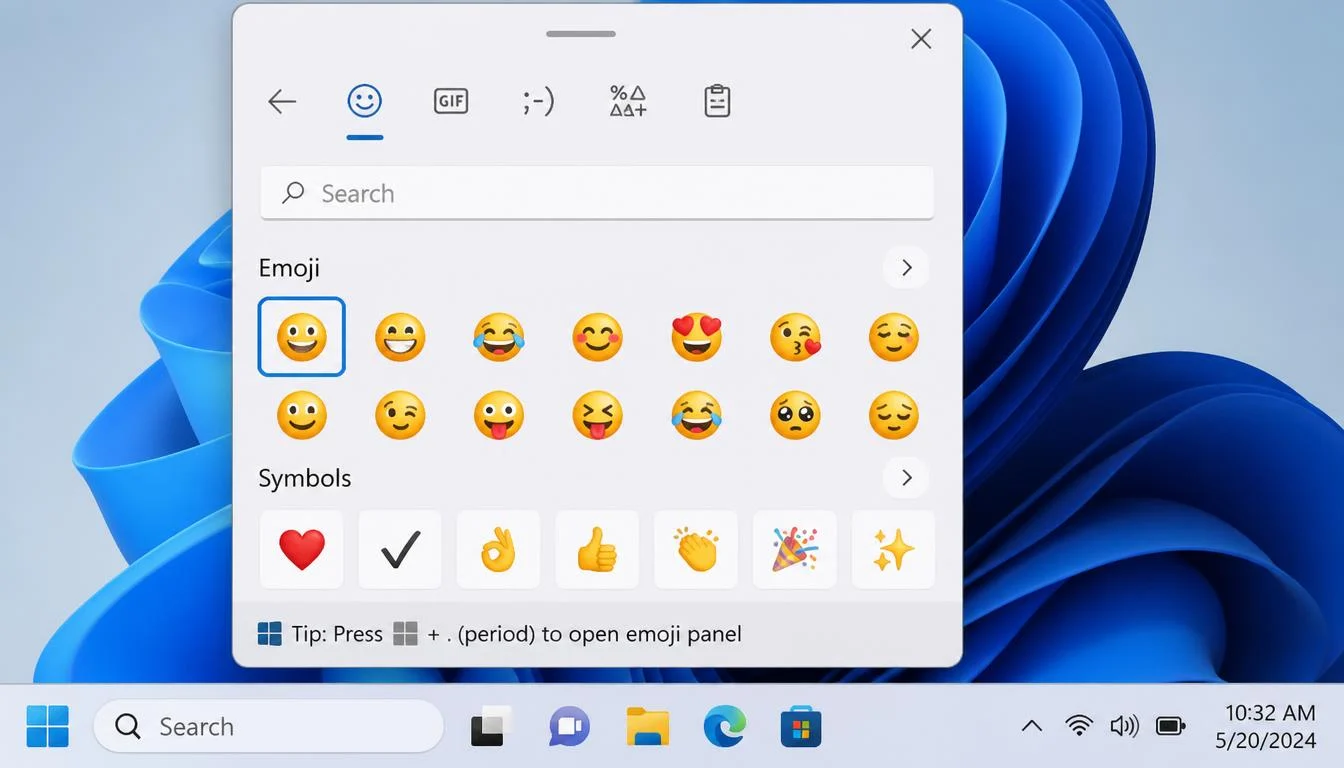
A small emoji panel should appear on your screen. It gives you access to different emoji categories and other text symbols.
Step 3: Search for an emoji
Type a word such as “happy,” “heart,” or “fire” in the search field to find a suitable emoji.
Step 4: Insert your emoji
Select the emoji you want. Windows inserts it at the current text cursor position in the active application.
Windows Emoji Keyboard Shortcut for Windows 10 and Windows 11
The emoji panel shortcut works in both Windows 10 and Windows 11. The panel’s appearance and available features may vary depending on your Windows version.
| Action | Keyboard shortcut |
|---|---|
| Open emoji panel | Win + . |
| Alternative emoji shortcut | Win + ; |
| Open Start menu | Win |
| Open Windows Settings | Win + I |
| Open clipboard history | Win + V |
| Switch keyboard language | Win + Space |
The last four shortcuts perform different tasks; they do not all open the emoji keyboard.
Note: Microsoft ended standard Windows 10 support on October 14, 2025. The emoji shortcut remains documented for Windows 10, but security and support considerations make upgrading to a supported Windows version worth considering.
How to Search for Emojis on Windows
You do not need to scroll through every emoji to find the one you want. The built-in search feature makes emoji selection easier.
- Press
Win + .to open the emoji panel. - Select the search field.
- Type a descriptive word, such as “smile,” “birthday,” “heart,” or “cat.”
- Browse the matching results.
- Select the emoji to insert it into your text.
For example, searching for “heart” can help you locate heart-related emoji options. Searching for “laugh” can help you find emojis that express amusement.
Search results depend on the available emoji collection and the words you enter.
Other Features in the Windows Emoji Panel
The Windows emoji panel offers more than standard smiley faces. Depending on your Windows version, it can provide access to several types of text content.
| Feature | What it does |
|---|---|
| 😀 Emoji | Adds facial expressions, hearts, objects, animals, and other pictographs. |
| GIFs | Lets you browse animated images where supported. |
| Kaomoji | Provides text-based expressions such as (^_^) and (づ。◕‿‿◕。)づ. |
| Symbols | Helps you insert special characters, punctuation, and other symbols. |
| Clipboard history | On supported versions, provides access to previously copied items. |
These options are useful for everyday messaging, informal writing, and documents that need special characters.
How to Use the Emoji Keyboard Without a Mouse
You can also navigate the emoji panel using your keyboard, which can be useful if you prefer keyboard controls.
- Press
Win + .to open the panel. - Press
Tabto move between interface elements. - Use the arrow keys to navigate available options.
- Press
Enterto select an emoji or another item. - Press
Escto close the panel when needed.
The exact navigation can vary by Windows version and interface. Microsoft also documents keyboard navigation for the emoji panel and its categories.
Why Is the Windows Emoji Keyboard Shortcut Not Working?
If Win + . does not open the emoji panel, try these troubleshooting steps.
1. Check the Windows Key
Make sure your Windows key works. If it is disabled through a keyboard setting, gaming mode, or hardware switch, the shortcut may not respond.
2. Try the Alternative Shortcut
Press Win + ; instead of Win + .. Both combinations are documented as ways to open the emoji panel.
3. Click Inside a Text Field
Open a text editor or message box and click where you want the emoji to appear before trying the shortcut again.
4. Test Another Application
Try the shortcut in a different text-entry application. If it works elsewhere, the original application may handle keyboard input differently.
5. Restart Your Computer
Restarting Windows may resolve a temporary input problem. If the shortcut fails across multiple applications, check the keyboard and Windows input features.
6. Check for a Keyboard Problem
If other shortcuts involving the Windows key also fail, test the key itself or try another keyboard. A hardware or keyboard-mode issue may prevent the shortcut from working.
How to Copy and Paste Emojis Without the Windows Shortcut
If your keyboard shortcut does not work, you can still copy and paste emojis from a webpage or another source.
For example, copy any of these emojis:
😀
Smiling face
Copy
❤️
Red heart
Copy
😂
Laughing face
Copy
👍
Thumbs up
Copy
🎉
Party popper
Copy
🔥
Fire
Copy
Select an emoji to copy it, then paste it with Ctrl + V.
This method works in many applications that support emoji characters. Their appearance can differ between applications and operating systems.
FAQs
What is the shortcut for the emoji keyboard on Windows?
Press Windows + Period (.) to open the emoji panel. You can also use Windows + Semicolon (;).
Does the Windows emoji shortcut work on Windows 11?
Yes. Windows 11 supports Win + . to open its emoji panel, which includes emoji selection and search.
Can I use the emoji keyboard in Microsoft Word?
You can generally use the Windows emoji panel while typing in Word. Click where you want to insert the emoji and press Win + .. The result depends on the application’s text input and font support.
How do I open the emoji keyboard on a laptop?
The same shortcut applies to most Windows laptops: press the Windows logo key and the period key together. You typically do not need a separate emoji-keyboard application.
Can I use Windows emojis in emails and social media posts?
Yes. You can insert emojis into many email editors, messaging applications, and social media text fields. The receiving device or application may display them differently.
Why does the emoji keyboard open but not insert an emoji?
Make sure the cursor is active in a text field and select an emoji from the panel. If insertion still fails, test another application to determine whether the issue is specific to that program.
Conclusion
The easiest way to open the Windows emoji keyboard is Win + ..Use Win + ; as an alternative, then search or browse to find the emoji you need.The built in panel also provides access to other useful text options, including symbols and, on supported versions, GIFs and kaomoji.If the shortcut fails, test the Windows key, try another application, and check your keyboard settings.
Read More Articles
- City Emoji 🏙️ Meaning in Chat, Social Media and Texting For 2026
- 💅 Nail Polish Emoji Meaning: The Real Meaning Behind This Gesture for 2026

Michael Anderson is a content writer at EmojissLife.com, where he creates fun, relatable, and easy-to-read emoji guides, meanings and creative ideas. He enjoys turning everyday conversations into expressive content that helps readers find the perfect emojis for every mood and moment.
1 thought on “Windows Emoji Keyboard Shortcut | for Messages, Documents and Social Media In 2026”