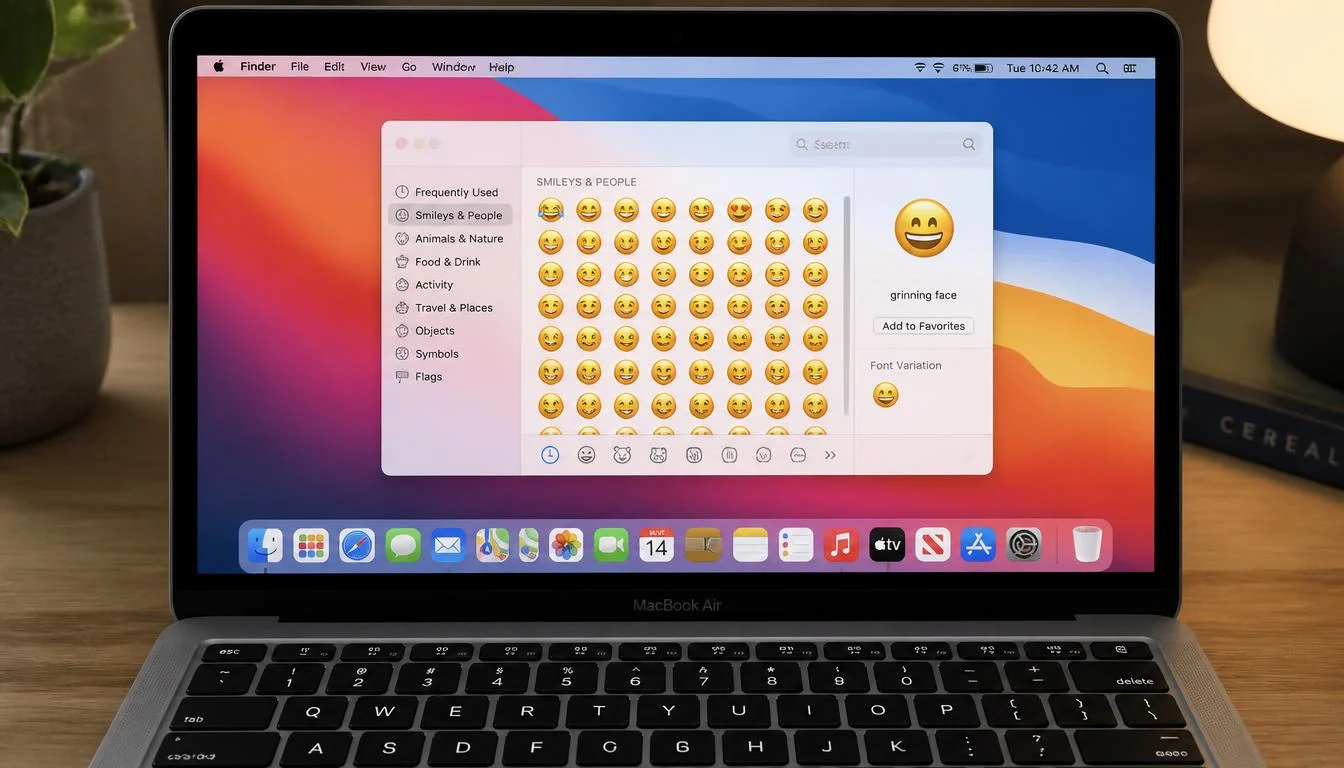
Quick Answer:
The quickest way to open the emoji keyboard on a Mac is:Click where you want to insert an emoji.Press Control + Command + Space at the same time.Search for an emoji or select one from the available categories.Click the emoji to insert it into your text.For example, search forsmile,heart,fire, orthumbs upto find an emoji without scrolling through the entire collection.
Method 1: Open the Emoji Keyboard With a Keyboard Shortcut

The keyboard shortcut is usually the fastest way to access emojis on macOS. It works in many apps that accept text, including Messages, Mail, Notes, and web forms.
Follow these steps:
- Open the app where you want to type.
- Place your cursor in the text box or document.
- Hold down the Control key.
- Hold down the Command (⌘) key.
- Press the Space bar.
- Select an emoji from the Character Viewer.
You can then continue typing your message.
Shortcut to remember: Control + Command + Space
This shortcut opens the emoji and symbol picker; it does not require you to install a separate emoji keyboard. Some applications may handle keyboard shortcuts differently.
Method 2: Open Emojis With the Globe or Fn Key
Some Mac keyboards include a Globe key (🌐), which may share a key with Fn. You can configure this key to open the emoji picker directly.
Here’s how:
- Click the Apple menu in the upper-left corner.
- Open System Settings.
- Select Keyboard.
- Find the option labeled “Press 🌐 key to” or “Press fn key to.”
- Select Show Emoji & Symbols.
After changing this setting, press the configured key to open the Character Viewer. The exact label may vary with your macOS version and keyboard.
Method 3: Open the Emoji Keyboard From the Edit Menu
If you cannot remember the shortcut or it does not work in your app, use the menu bar.
- Open an app that supports text input.
- Click Edit in the menu bar.
- Select Emoji & Symbols.
- Find the emoji you need.
- Click the emoji to insert it.
The menu option is available in many built-in Mac apps, although its availability may differ between applications.
How to Search for an Emoji on Mac
You do not need to scroll through hundreds of emojis to find the right one. The Character Viewer includes a search field that helps you find emojis by name or description.

To search for an emoji:
- Open the emoji keyboard with Control + Command + Space.
- Click the search field.
- Type a word such as
laughing face,rocket,book, orred heart. - Choose the emoji that matches your search.
- Click it to insert it into your text.
For example, searching for book can help you locate book-related emoji, while searching for heart displays heart options. The exact results depend on the search term.
How to Use Emojis in Messages, Emails, and Documents
Once you open the emoji picker, you can insert emojis in many places where text is accepted.
| Where you want to use an emoji | How to insert it |
|---|---|
| Messages | Open the picker and click an emoji in your message |
| Place the cursor in the email body and insert an emoji | |
| Notes | Click inside a note and choose an emoji |
| Documents | Place the cursor in the document and select an emoji |
| Web forms | Click the text field, open the picker, and select an emoji |
| Social media posts | Insert an emoji wherever the website’s text editor supports it |
The exact behavior can vary by app. If the shortcut does not work, try the app’s Edit → Emoji & Symbols menu or copy and paste the emoji from another source.
How to Find Different Types of Emojis on Mac
The Character Viewer lets you explore more than facial expressions. You can also find objects, symbols, animals, flags, and other characters.
Here are some examples you can search for:
| Emoji | Name or search term | Common use |
|---|---|---|
| 😀 | Grinning Face | Happiness and friendliness |
| ❤️ | Red Heart | Love and affection |
| 😂 | Face with Tears of Joy | Laughter and amusement |
| 👍 | Thumbs Up | Agreement or approval |
| 🎉 | Party Popper | Celebrations and good news |
| 📚 | Books | Reading and education |
| 💻 | Laptop | Computers and technology |
| 🌎 | Globe Showing Americas | Earth and global topics |
These examples are useful search terms for finding and inserting emojis. Their meanings can vary depending on the conversation.
How to Use Recently Used Emojis
If you often use the same emojis, the Character Viewer can make them easier to access.
- Open the emoji picker.
- Look for the recently used emojis section.
- Select an emoji you have used before.
Depending on the viewer’s layout, recently used emojis may appear near the top. This is useful when writing frequent messages that include familiar expressions or symbols.
How to Add Favorite Emojis on Mac
You can also add frequently used emojis to your favorites for easier access.
- Open the Character Viewer.
- Expand the viewer if necessary.
- Select an emoji or symbol.
- Click Add to Favourites.
Your favorite characters can then be accessed from the Favourites category when the expanded viewer supports it. This is helpful if you regularly use particular emojis for work, communication, or social media.
What to Do if the Mac Emoji Keyboard Is Not Working
If pressing Control + Command + Space does not open the emoji keyboard, try these troubleshooting steps.
1. Check the keyboard shortcut
Make sure you are pressing all three keys together:
- Control (⌃)
- Command (⌘)
- Space bar
Try the shortcut again while your cursor is inside a text field.
2. Use the Edit menu
Open an app that supports the Character Viewer and select Edit → Emoji & Symbols. This provides another way to open the picker.
3. Check the Globe key setting
Go to Apple menu → System Settings → Keyboard. Check the option for the Globe or Fn key and select Show Emoji & Symbols if you want that key to open the picker.
4. Try another app
Test the shortcut in a different app, such as Notes or Messages. If it works there but not in your original app, the problem may be related to that application’s shortcuts or text editor.
5. Restart the app
Save your work, close the affected app, reopen it, and test the shortcut again.
FAQs
What is the shortcut to open emojis on a Mac?
Press Control + Command + Space while your cursor is in a text field. This opens the Character Viewer, where you can search for and insert emojis.
Can I open the Mac emoji keyboard with one key?
Yes. If your keyboard has a Globe or Fn key, you can configure it under System Settings → Keyboard to open Emoji & Symbols.
Do I need to download an emoji keyboard for Mac?
No. macOS includes a built-in emoji and symbol picker called the Character Viewer. You can use it without installing a separate keyboard app.
How do I insert an emoji into text on Mac?
Open the Character Viewer, search for the emoji you want, and click it. The emoji is inserted at your cursor when the active app supports the action.
Can I use emojis in Google Docs on a Mac?
Yes. You can usually insert emojis into Google Docs using the built-in macOS picker or by copying and pasting an emoji. If a keyboard shortcut conflicts with the browser or editor, use the document’s menus or paste the emoji directly.
How do I open symbols as well as emojis?
Press Control + Command + Space, then expand the Character Viewer if necessary. You can browse symbols, accented characters, and other available character categories.
Why does my Globe key change languages instead of opening emojis?
Your Globe key may be configured to change the input source. Open System Settings → Keyboard and change its assigned action to Show Emoji & Symbols if that option is available.
Conclusion
Opening the emoji keyboard on Mac is simple once you know the right shortcut. Press Control + Command + Space to access the Character Viewer, search for your favorite emojis, and insert them into messages, documents, and emails. If the shortcut does not work, try the Edit menu or configure your Globe key to make emoji access even faster.
Read More Articles
- Scroll Emoji 📜 | Meaning, Uses, and Copy Paste Options In 2026
- Cursing Emoji 🤬 | Meaning, Uses and Examples In 2026

Olivia Brown is a content writer at EmojissLife.com, where she creates fun, engaging, and easy-to-read emoji guides, meanings and collections. She enjoys turning everyday expressions into creative content that helps readers find the perfect emoji for every moment.
1 thought on “How to Open Emojis on Mac | Shortcut, Tips and Tricks In 2026”